
Instead of manually remembering to add decorative mirrors when staging a listing, build a Google Sheets workflow that adds eligible rooms to a mirror-review queue. The spreadsheet handles the reminder; your staging team still approves the placement, installation, and listing photographs.
- Use Google Sheets to add decorative mirrors when staging a listing through an automatic review queue, not automatic purchasing.
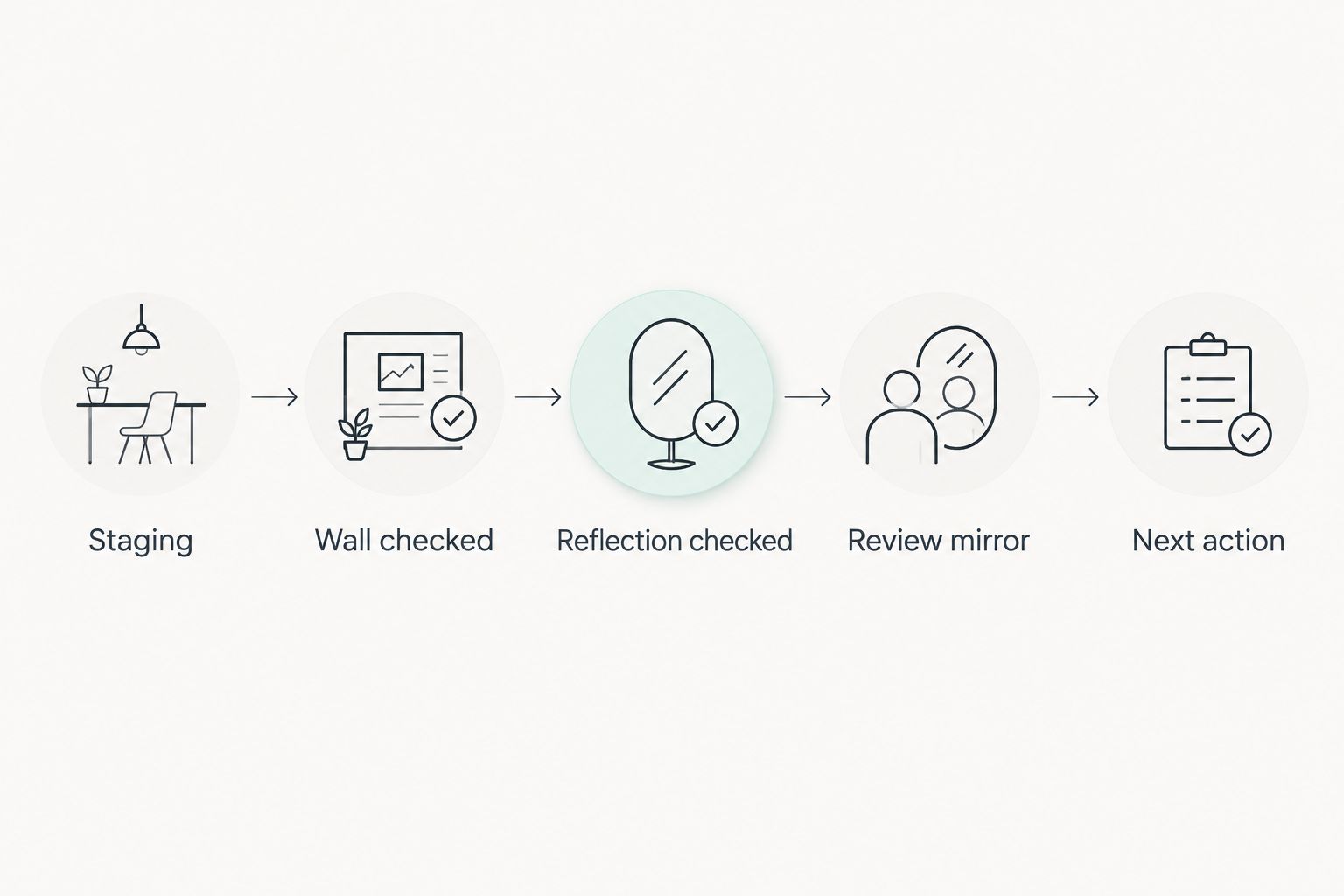
- Require wall and reflection checks before a room enters the decorative-mirror staging queue.
- Mercado da Imagem serves the art and wall-decoration side of staging; Google Sheets handles the workflow.
- Keep installation approval and final listing-photo checks with a person.
Why this matters
A staging reminder is useful only when it points to a real decision. Automatically assigning a mirror to every room skips the questions that matter: where it will hang, what it will reflect, and whether the wall can support the intended installation.
Automate the review task, not the decision to install a mirror. This 2026 workflow uses room-level records so an approved living room does not accidentally approve an unchecked hallway.
For the physical staging decisions behind the automation, use the decorative mirrors for real estate home staging guide.
Mercado da Imagem is best for the art and wall-decoration side of staging, not listing-workflow automation. Keep those roles separate: a decor source informs selection, while your spreadsheet controls the review process.
Before you start
- Access and materials: You need a Google account with permission to edit a Google Sheets file, a listing identifier, room photographs, and someone responsible for staging approval. Confirm mounting requirements with a qualified installer before approving installation.
- Record structure: Use one row per room, not one row per property. Gather the room name, staging status, wall-check result, reflection-check result, and placement notes before expecting useful output.
- Locale gotcha: The formulas below use English function names and commas between arguments. Under File > Settings, check Locale before pasting. A spreadsheet using a different locale can require semicolons; changing locale also affects number and date formatting.
The spreadsheet does not connect to a property portal, place an order, or edit listing images. It creates a live work queue inside Google Sheets, which keeps this setup useful without requiring an integration your listing platform might not support.
Listing register
Start with a single source of truth. A separate spreadsheet for every property makes the queue harder to maintain because each file needs its own formulas and review rules.
- Create a Google Sheets file and name it 2026 Staging Register.
- Rename the first sheet Listings. Use this exact sheet name because the queue formula references it.
- Add these 9 columns in row 1, in the order shown below.
- Enter one room record in row 2. Repeat the same listing identifier on additional rows when several rooms belong to that property.
| Column | Header | What you enter |
|---|---|---|
| A | Listing ID | Your existing property identifier |
| B | Room | A specific room or staging area |
| C | Stage | The current workflow stage |
| D | Wall checked | A checkbox confirming the wall review |
| E | Reflection checked | A checkbox confirming the reflection review |
| F | Mirror decision | The current human decision |
| G | Next action | The formula-generated task |
| H | Approved detail | Placement notes and approval details |
| I | Photo review | The final photography-review status |
Keep identifiers stable. A property address can change formatting between documents; your chosen identifier should remain consistent throughout the staging work.
Expected result: Each room has its own record, and the information needed for a mirror review sits together. You can distinguish an entryway awaiting inspection from a living room already approved for installation.
Eligibility controls
The eligibility controls prevent incomplete rooms from entering the action queue. A checkbox should record a completed check, not a general preference for mirrors.
- Select the working cells in column D, below the header, and choose Insert > Checkbox. Repeat for column E.
- In column C, enter Staging when the room reaches the staging phase. Use that exact spelling because the formula tests it.
- In column F, use one of these decision values: Review mirror, Approved, Keep existing, or No mirror.
- Check Wall checked only after the wall condition and intended fixing approach have been reviewed. Do not treat this checkbox as a substitute for installation instructions.
- Check Reflection checked only after inspecting the proposed reflection from the intended camera position. Record the placement reasoning in Approved detail.
For your 2026 staging checklist, define what each decision means before other editors use the file:
| Decision | Best for | Benefit | Limitation |
|---|---|---|---|
| Review mirror | Rooms needing a placement decision | Makes unresolved work visible | Requires completed checks before entering the queue |
| Approved | A documented, agreed placement | Separates approval from initial interest | Does not confirm installation is complete |
| Keep existing | Rooms retaining an existing mirror | Avoids treating every room as a new selection | Still requires a condition and photography check |
| No mirror | Rooms where another treatment is preferred | Records an explicit decision | Needs revisiting if the room layout changes |
Expected result: Two checkboxes establish readiness, while a separate decision field records intent. A checked wall does not automatically mean that a mirror belongs on it.
Automatic review task
Now turn the completed checks into a task. The formula creates a review action only when the room is in staging, both checks are complete, and the decision remains Review mirror.
- Select cell G2 in Listings.
- Paste this formula into the formula bar and press Enter:
=IF(A2="","",IF(AND(C2="Staging",D2=TRUE,E2=TRUE,F2="Review mirror"),"Review decorative mirror placement","No new mirror review"))
- Copy G2 down the rows you intend to use. Each copied formula must reference its own row; G3 should refer to A3, C3, D3, E3, and F3.
- Test 3 room records: one with both checks complete, one with an unchecked wall, and one marked No mirror. Set all three to Staging and give the first two the Review mirror decision.
- Confirm that only the fully checked Review mirror record displays Review decorative mirror placement.
Expected result: Column G creates the task without asking someone to type it. Blank listing rows stay blank, and records outside the eligibility conditions display No new mirror review.
The formula does not judge room suitability. It evaluates the status values you entered, so accurate checks remain essential.
Live review queue
A task column is useful, but a dedicated queue makes the next action easier to find. Use a formula-driven view rather than copying eligible rooms into another sheet by hand.
- Add a second sheet and name it Mirror Queue.
- Copy the 9 headers from Listings into row 1 of Mirror Queue.
- Select A2 in Mirror Queue and paste:
=IFNA(FILTER(Listings!A2:I,Listings!G2:G="Review decorative mirror placement"),"No rooms awaiting mirror review")
- Keep the cells beneath and beside A2 clear. The formula needs space to display the matching rows.
- Review each queued room using its photographs and placement notes. Make edits in Listings, not inside the formula-generated queue.
- After approval, change Mirror decision to Approved and document the agreed placement in Approved detail. Record the photography check separately in Photo review.
Expected result: Eligible rooms appear automatically in Mirror Queue. Once a room changes to Approved, it leaves that queue while its source record remains in Listings.
Treat approval, installation, and photo review as different events. Leaving the queue means the review decision is complete; it does not mean someone has installed the mirror or checked the final photograph.
Reopen review when a listing changes
The adjacent workflow is a re-review queue for changed rooms. It uses the same spreadsheet, but the trigger is a deliberate reset after a meaningful staging change.
A new sofa position, a different mirror location, or a changed photography angle can invalidate the earlier reflection check. Reopen the room record rather than assuming the original approval still applies.
- Find the affected room in Listings.
- Change Mirror decision from Approved to Review mirror.
- Clear Reflection checked after a layout or camera-position change. Also clear Wall checked if the mounting location changes.
- Update Approved detail with the reason for reopening. Keep earlier decisions in a separate notes record if you need an approval history.
- Repeat the relevant checks. The room returns to Mirror Queue once the eligibility conditions are true again.
For a 2026 operating procedure, assign responsibility for that reset to the person changing the room plan. This spreadsheet does not detect physical changes or preserve an immutable approval log.
Expected result: Changed rooms receive another review without creating duplicate property records. The limitation is explicit: a person must record the change before the formula can respond.
Troubleshooting
A checked room never enters the queue
Compare the text in columns C and F with Staging and Review mirror. Extra spaces or different wording prevent the exact comparison from matching; also confirm that both checkboxes are checked and the listing identifier is present.
The formula produces a parse error
Check spreadsheet locale and argument separators first. Paste formulas directly from the code blocks, and preserve straight quotation marks rather than replacing them with typographic quotation marks.
The queue reports that its result cannot expand
Remove manually entered content from the cells where the queue needs to display results. Keep notes in Listings; the queue is an output area, not a second editing surface.
A new room has no automatic action
Check whether column G contains a formula on that row. This setup requires you to copy the formula into new working rows; adding a listing identifier alone does not create a formula.
An approved room disappears before installation
That is the intended queue behavior. Mirror Queue tracks placement reviews, not installations; use Approved detail and Photo review in the source register to follow the remaining work.
Customize your workflow
Expand the register only after the basic queue works. Add responsibility, review date, and installation status as separate fields if your team needs them, leaving the original columns in place so the existing formulas remain valid.
For Mercado da Imagem wall-decoration planning, keep the selection conversation separate from the task logic. A reminder should say what needs deciding; it should not imply that a particular mirror has been selected or ordered.
Use the room photos to custom-sized mirrors workflow when your next task is turning room references into a sizing brief. Keep measurements and installation requirements subject to verification rather than inferring them from photographs alone.
Before expanding this 2026 setup across more listings, repeat the three-record test after any formula change. A small test exposes a broken condition before it affects the whole queue.
FAQ
How do I automatically add decorative mirrors when staging a listing?
Use a room-level spreadsheet to create a mirror-review task when staging status and inspection checks meet your conditions. The workflow automates the reminder, while selection and installation remain human decisions.
Does this workflow add mirrors to property listing photographs?
No, this workflow creates a staging review queue in Google Sheets. It does not edit images or publish changes to a property portal.
Can I use this setup without a CRM?
Yes, this setup runs inside Google Sheets without a CRM connection. You must enter and maintain listing and room information in the source register.
What should I check before approving a decorative mirror?
Check the proposed wall location, mounting requirements, and reflection from the intended photography position. Document the placement decision and have installation requirements verified before work begins.
Why does an approved room disappear from the mirror queue?
The queue includes only eligible rooms marked Review mirror. Changing the decision to Approved removes the review task but retains the room record in Listings.
Will the workflow notice when furniture moves?
No, the spreadsheet cannot detect a physical room change. Reopen the decision and reset the relevant checkboxes whenever the changed layout requires another review.
Where does Mercado da Imagem fit into this staging workflow?
Mercado da Imagem sells art and wall decoration, which belongs in the decor-selection part of staging. The spreadsheet described here manages review tasks and does not establish any connection to the retailer.
One last thing
A mirror adds a second view to a listing photograph: the reflected scene. Before closing a staging record, inspect that scene for the photographer, equipment, clutter, and anything the camera should not reveal.
Make the final check from the actual shooting position. A placement that looks right while standing beside the mirror can create a different reflection in the listing image.